Introduction
A quick overview of what happens between creating your account and reaching your dashboard — the two steps every new company must complete, and the optional steps you can finish later.
What It Is
Onboarding is the guided setup every new company completes immediately after creating an account — before you can reach your Stocktakes dashboard, a handful of required details need to be in place. It appears automatically at /Onboarding right after signup, and picks up again from wherever you left off if you close the browser partway through.
Why It Matters
Stokkd needs a minimum amount of information before a company is fully active - a stocktake can't be created without at least one site to count, and sites can't be added or synced without first knowing how your inventory data is managed. Onboarding exists to collect exactly that, in order, so you land on a working dashboard rather than a half-configured company.
Your company stays in a pending state (not yet Active) until both of onboarding's requirements are met:
- An integration has been chosen — Manual (upload your own stock files) or API (e.g. Shopify, synced automatically)
- At least one site exists
There's no "skip for now" option for either of these - they're the only two things onboarding actually requires.
How It Works
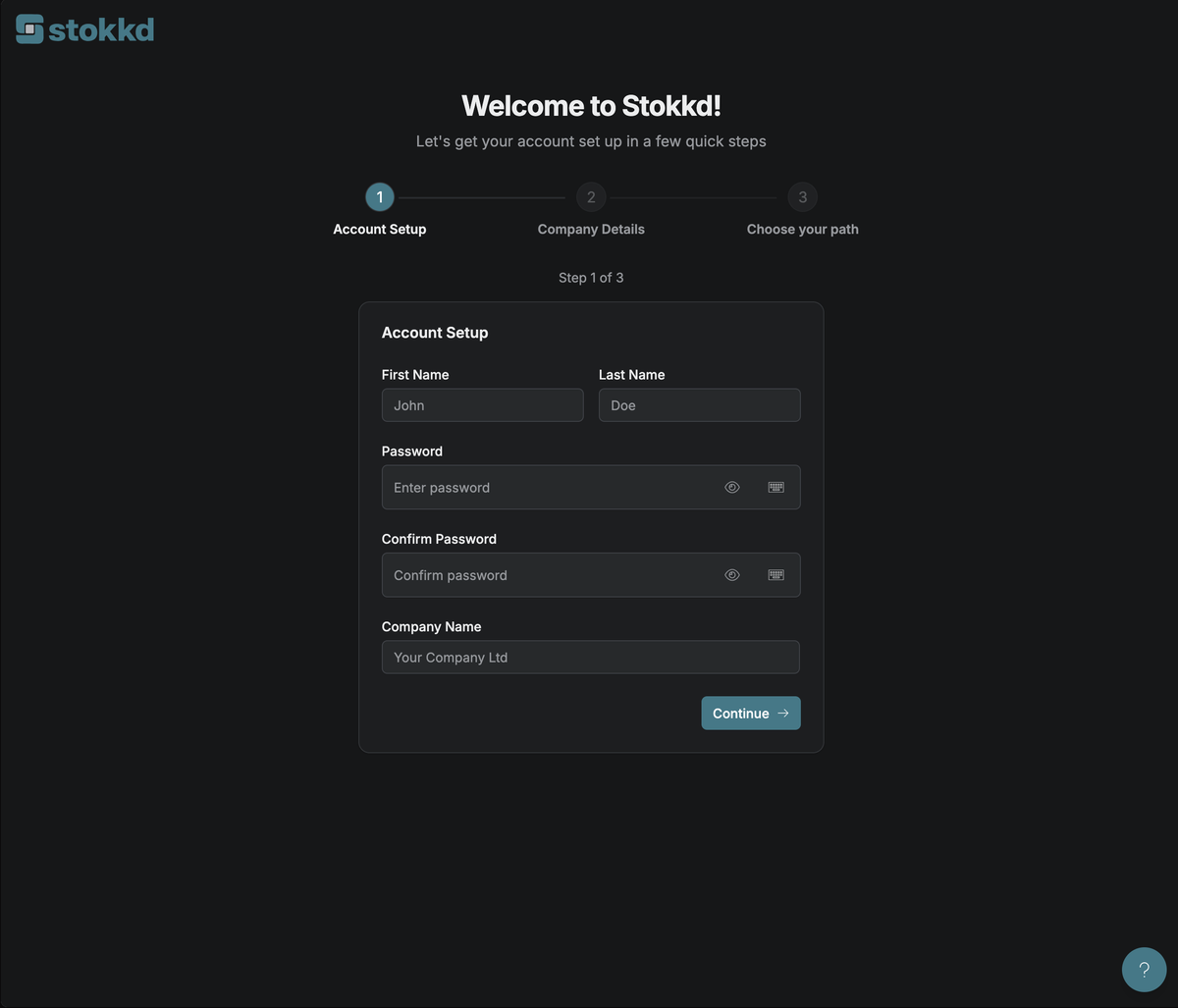
Onboarding starts with three steps — Account Setup → Company Details → Choose your path — tracked by a step indicator at the top of the page:
- Account Setup — confirms your name and password. This step is skipped automatically if you signed up with Google, Microsoft, or Shopify, since your account already exists by the time you reach onboarding.
- Company Details — your company's contact name, email, title, phone, and country.
- Choose your path — pick Manual or API. See Choose an Integration for the full comparison.
Choosing a path takes you to a dedicated Manual Setup or API Setup page, each with its own step indicator for what's left — it doesn't continue counting from the first three steps:
- Manual Setup continues to a sample stock file upload, then a mandatory site step.
- API Setup continues to a store connection, then a mandatory review of the sites synced in automatically.
Once both the integration and at least one site are in place, your company is marked Active, and you land on your dashboard.
 > Signed up with Shopify? Your company details, integration, and sites are already imported for you — you'll land directly on the site review step, with nothing else from the list above left to complete.
Key Settings
Two optional items also appear around onboarding, but neither blocks you from finishing:
- Adding Users — invite your team so counting can be split across multiple people. This can be done during onboarding or any time afterwards from Settings.
- Choosing a Subscription Plan — every new company starts on a free trial; you can select a paid plan during onboarding or later from Settings. See Your Subscription for details.
Best Practices
- Complete onboarding in one sitting if possible — it only takes a few minutes, and your progress is saved if you need to step away.
- Have your company's contact details ready, and (if choosing Manual) a sample stock file, or (if choosing API) your store URL, before you start — so you're not searching for them mid-setup.
- Don't worry about getting every detail perfect — company details, sites, and your integration choice can all be edited later from Settings.
Media Requirements
Images Needed:
- IMAGE_PLACEHOLDER:onboarding-stepper-overview — Screenshot of the onboarding wizard header/stepper showing the current step indicator.
IMAGE_PLACEHOLDER:onboarding-journey-flow— Done. Flow diagram generated atdocs/images/generated/onboarding-introduction/onboarding-journey-flow.svgand embedded above.
Videos Needed:
None.
Attachments Needed:
None.
Next Steps
- Produce the remaining screenshot listed above (
onboarding-stepper-overview). - Upload the screenshot to the appropriate library.
- Replace the remaining
IMAGE_PLACEHOLDERtag with the real uploaded URL. - Review content for accuracy against the current
/Onboardingwizard. - Submit via the
submit-documentationskill workflow (docs:convert→docs:submit→docs:sync). - After publishing, link related articles via the Related Articles Manager (see suggested list above).