Roles and Permissions
Learn about the four user roles available in the client app — Owner, Administrator, Supervisor, and Member — and understand what each role grants access to so you can assign the right role when creating or editing users.
Overview
Every user in the client app is assigned a role that controls which features they can see and what actions they can take. Roles exist so that location managers can give team members the right level of access without granting more than they need.
There are four roles: Owner, Administrator, Supervisor, and Member. This guide explains each role, helps you choose the right one, and shows a detailed breakdown of what each role can access.
Owner — Unrestricted Access
Important: The Owner role bypasses all permission checks entirely. Owners always have full access to every feature in the app, regardless of any settings. This role is assigned automatically to the account holder.
If you need full control (minus Billing) without the Owner role, use Administrator instead.
Choosing the Right Role
Use this table to quickly decide which role fits a person's responsibilities:
Role Best for Key capabilities Administrator Location managers, team leads Full stocktake control, user management, company settings, billing access Supervisor Senior counters, area coordinators Run and review stocktakes, manage areas; cannot manage users or company settings Member Standard counters, casual staff Enter counts in assigned areas; read-only access elsewhere
In short:
- Assign Administrator to the person responsible for setting up stocktakes and managing the team.
- Assign Supervisor to experienced counters who coordinate areas but don't need administrative control.
- Assign Member to everyone else — standard counters who only need to enter quantities.
Role Hierarchy
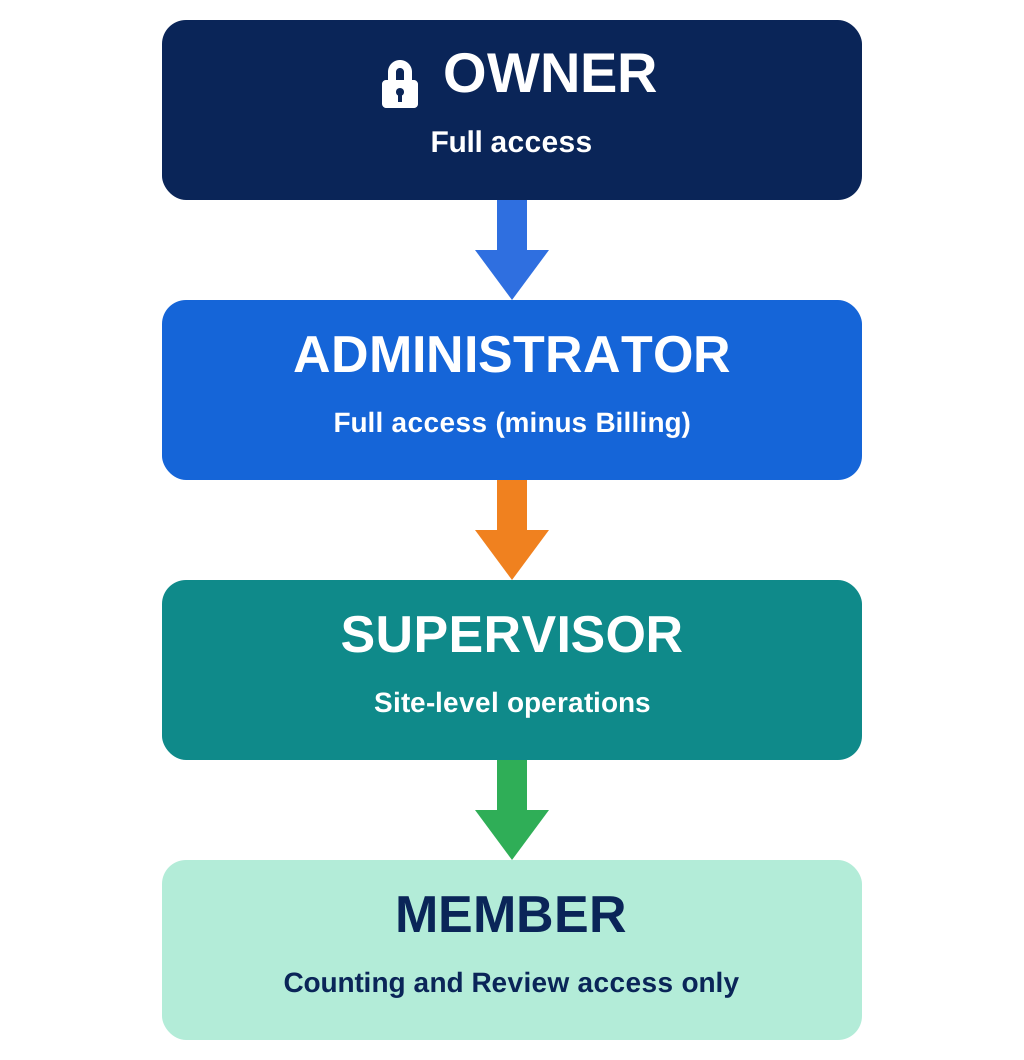
The roles form a clear access ladder — each role includes all the access of the role below it, plus additional capabilities:
Common Scenarios
Use these examples to guide role assignment decisions:
- "I need this person to set up the next stocktake and create areas." → Assign Administrator or Supervisor (Supervisors can create areas).
- "This person only scans barcodes during a count." → Assign Member.
- "This person manages our team roster and needs to add/remove users." → Assign Administrator (only Administrators can manage users).
- "This person reviews variances and approves counts but does not set up stocktakes." → Assign Supervisor.
- "This person needs to finalize and post stocktake results to our integration." → Assign Administrator (only Administrators can finalise stocktakes).
- "A contractor is joining for one stocktake and should only count their assigned zone." → Assign Member.
Tips & Best Practices
- Principle of least privilege — always assign the minimum role that allows the person to do their job. Avoid assigning Administrator to everyone "just in case".
- Supervisors are ideal middle ground — they can run a stocktake end-to-end (except finalization), making them useful for stores with experienced leads.
- Only one Owner — the Owner role is reserved for the account holder. You cannot assign Owner to other users.
- Review roles periodically — for contractors or temporary staff, adjust the role back to Member or disable the account after the stocktake is complete.