Completing Your Company Details
Step 2 of onboarding collects your company's name, company access code, contact details, and country. This explains what each field is for, which ones are required, and why you can't skip or go back once you've started.
What It Is
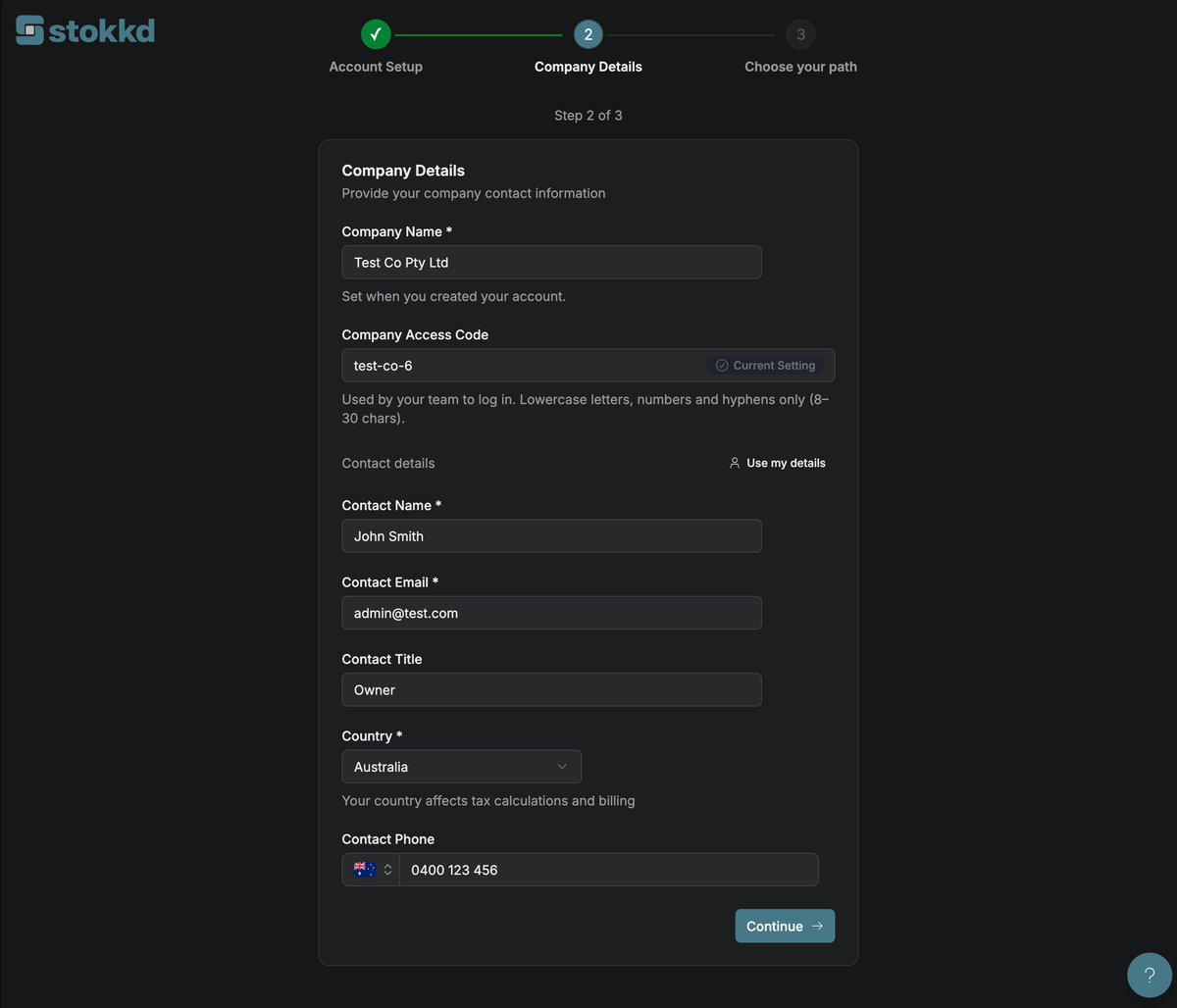
Company Details is the second step of onboarding, shown right after Account Setup. It collects the core information Stokkd needs about your business — your company name, company access code (a team login code), a primary contact, and your country — before you can move on to choosing how you'll manage inventory data.
This step is required and can't be skipped. Unlike later onboarding steps, there's also no Back button here — Account Setup is already confirmed by the time you reach this page, so the form only moves forward.
Why It Matters
These details aren't just paperwork — each one does something specific:
- Company Name identifies your business throughout Stokkd, including on reports and in your team's login screen.
- Company Access Code is what your team actually types in to log in (alongside an employee ID, if not using a verified email).
- Contact Name and Contact Email give Stokkd a primary point of contact for your company — used for important account communications.
- Country affects tax calculations and billing for your subscription, so it needs to be correct from the start.
How It Works
Enter your Company Name. As soon as you move out of this field, Stokkd suggests an access code based on the name you typed.
Review the Company Access Code. A badge next to the field shows its current state:
- Validating… — checking uniqueness (briefly, while you pause typing)
- Available — this code is free to use
- Not Available — someone else already has it; try a different one
- Current Setting — matches what's already saved for your company (only shown if you're editing existing details)
Access codes must be 8–30 characters, lowercase letters, numbers, and hyphens only (e.g.
acme-retail-2024). If you edit the suggested code yourself, Stokkd stops auto-suggesting new ones so your changes aren't overwritten.Fill in contact details. Contact Name and Contact Email are required; Contact Title and Contact Phone are optional. If you're the account owner, click Use my details to copy your own name and email into these fields instantly (your title is set to "Owner").
Select your Country from the dropdown. This is required and can't be left blank.
Click Next once every required field is filled in and the access code shows as available — your details are saved immediately and you move on to Choose an Integration.
Returning to this step later? Company Details can always be edited afterwards from Settings, so getting every field perfect right now isn't critical — just accurate enough to move forward.
Key Settings
- Company Access Code is the most important field to get right early — it's what your team will type every time they log in, so a short, memorable code (often based on your company name) works best.
- Country can't be changed casually later, since it's tied to tax and billing — double-check it's correct before continuing.
- Use my details is the fastest path through this step if you're setting up your own company — it fills in two of the four contact fields in one click.
Best Practices
- Keep the access code simple and easy for your team to remember and type — avoid anything overly long or similar to another company's code.
- Use a contact email your team actually checks — it's where account-related communications land.
- If you're unsure of your exact legal company name, use the name your team recognises day-to-day; it can be corrected later in Settings without affecting anything else.