Installing on iOS / iPadOS
Step-by-step instructions for installing the Stokkd app to your iPhone or iPad's home screen, so you can log in and start counting.
Overview
Stokkd is a Progressive Web App (PWA) — it works like a native app but installs directly from your browser, with no app store required. On iPhones and iPads, installing Stokkd to your home screen is required before you can log in.
Prerequisites
- An iPhone or iPad running iOS/iPadOS
- The Safari browser (required — Add to Home Screen is not available in other iOS browsers)
- Active internet connection for the initial install
- Your Stokkd account credentials (provided by your company administrator)
Installing to Your Home Screen
Step 1: Open Stokkd in Safari
- On your iPhone or iPad, open Safari
- Navigate to
https://stokkd.app - You'll see an installation screen — the app must be installed before you can proceed
You can also choose Continue in browser, which allows 24 hours of browser use before you're prompted to install again.
Step 2: Add to Home Screen
Tap the Share button (square with an arrow pointing up) at the bottom of Safari
Scroll down and tap Add to Home Screen
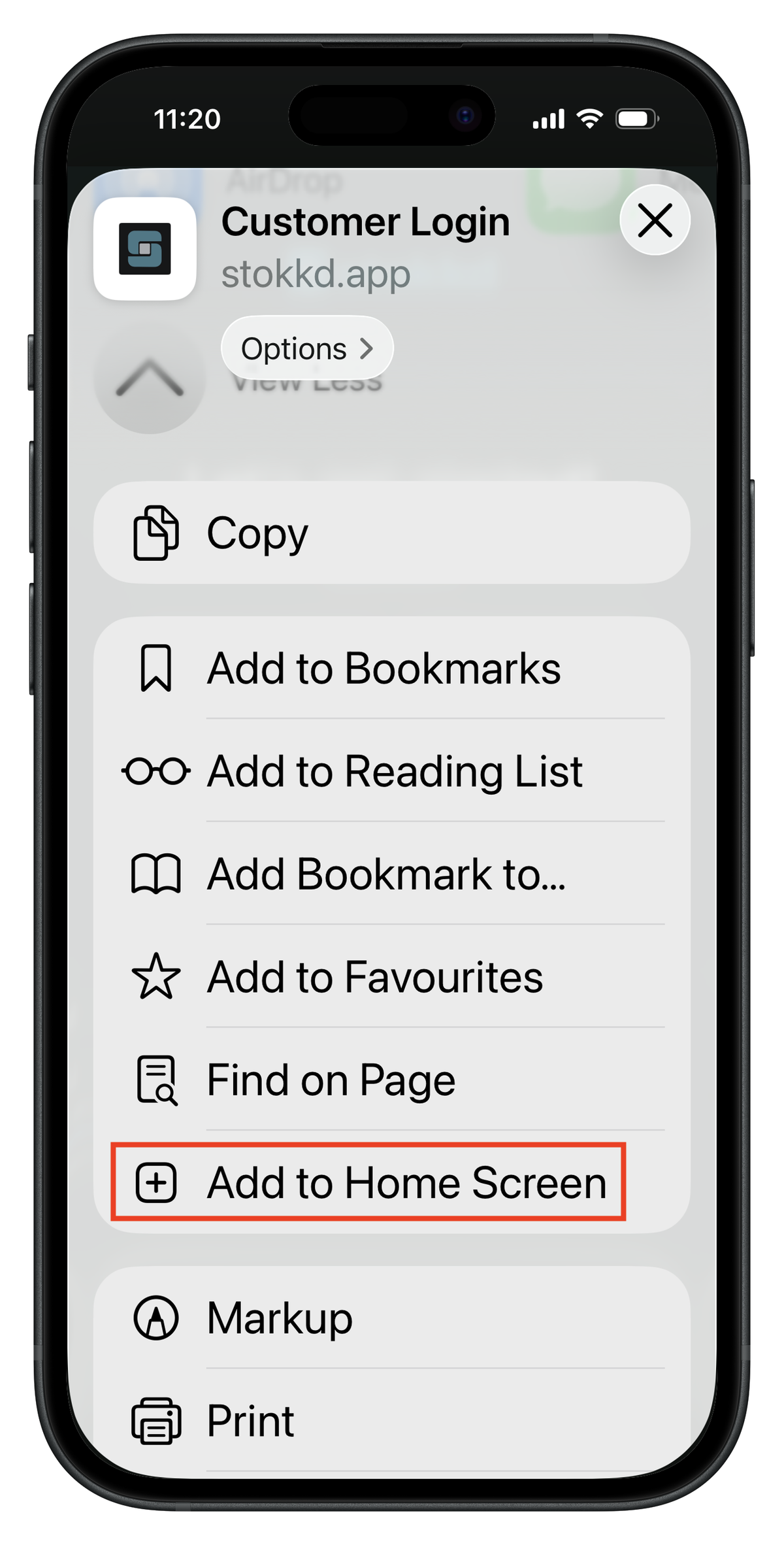
Edit the name if desired (default: "Stokkd")
Tap Add in the top right corner
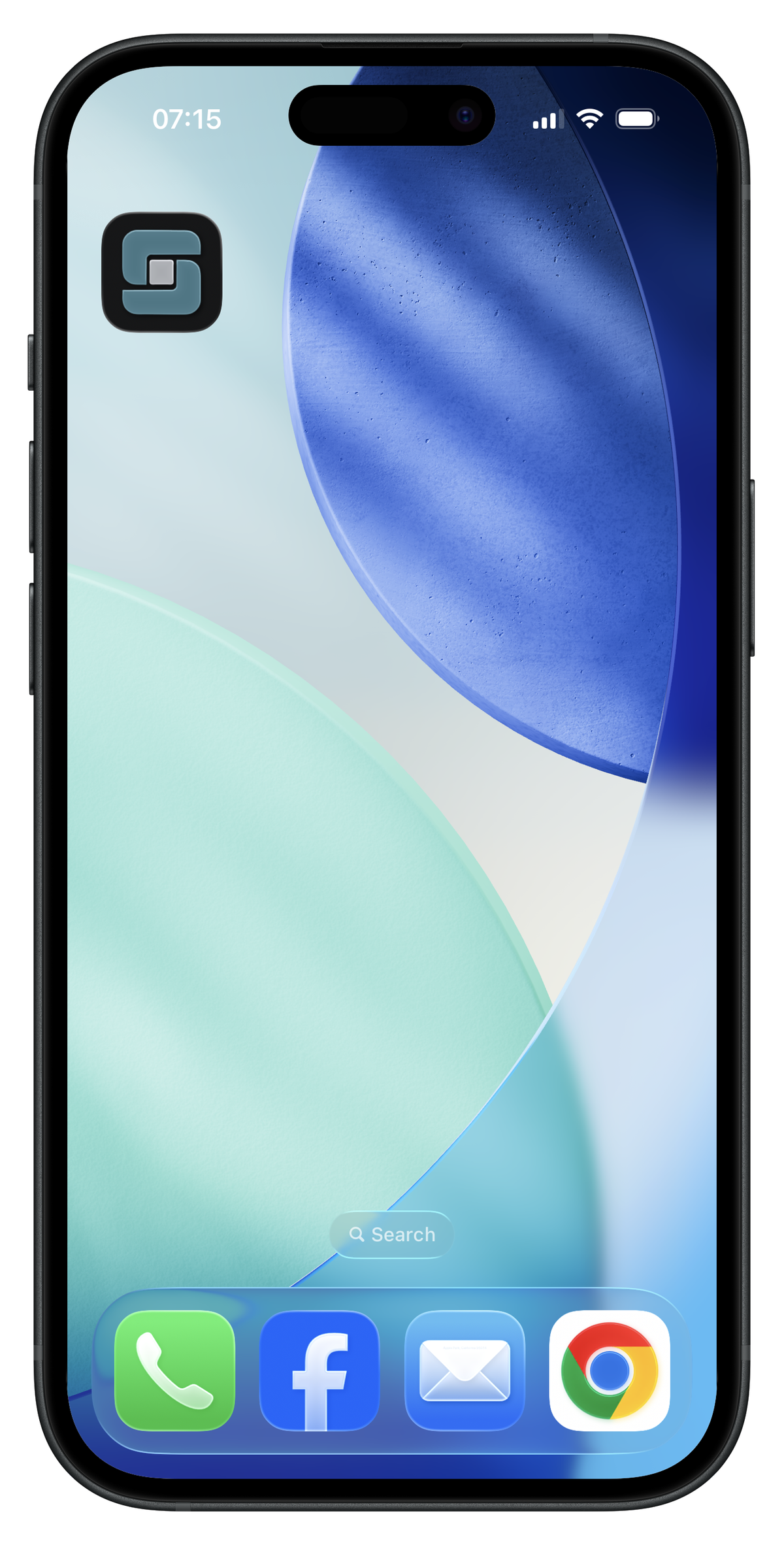
The Stokkd icon appears on your home screen
Step 3: Log In and Start Using
- Find the Stokkd icon on your home screen
- Tap to launch the app
- Log in with your credentials
- You're ready to start counting
The app opens in fullscreen mode without browser controls, giving you a native app experience.
Why is installation required? Installing to your home screen ensures the best performance, reliability, and enables required functionality.
Tips & Best Practices
- Always launch from the home screen icon, not the browser
- Keep the app updated — when prompted to update, reload for the latest fixes and features
- Charge your device fully before starting a stocktake
- iPad users: portrait orientation is required on all screens, including login — see Using Stokkd on a Tablet for details
Having issues? See the Mobile App Troubleshooting guide for installation problems.